60% vs 65% Keyboards: Do You Need Dedicated Arrow Keys?
A specification-led comparison of the HyperX Alloy Origins 60 and 65: what the extra column adds, what it costs in width, and a checklist for deciding.
Contents
How this comparison works
To keep the comparison concrete, this guide sets two HyperX keyboards from our catalog side by side: the HyperX Alloy Origins 60 and the HyperX Alloy Origins 65. The figures come from HyperX's own product and support pages. The decision checklist is editorial advice, and we have not tested either keyboard.
What changes between 60% and 65%
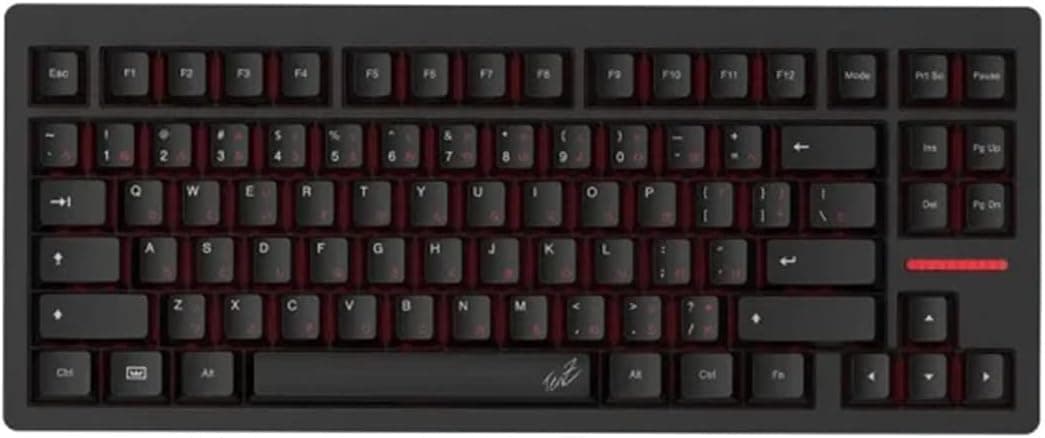
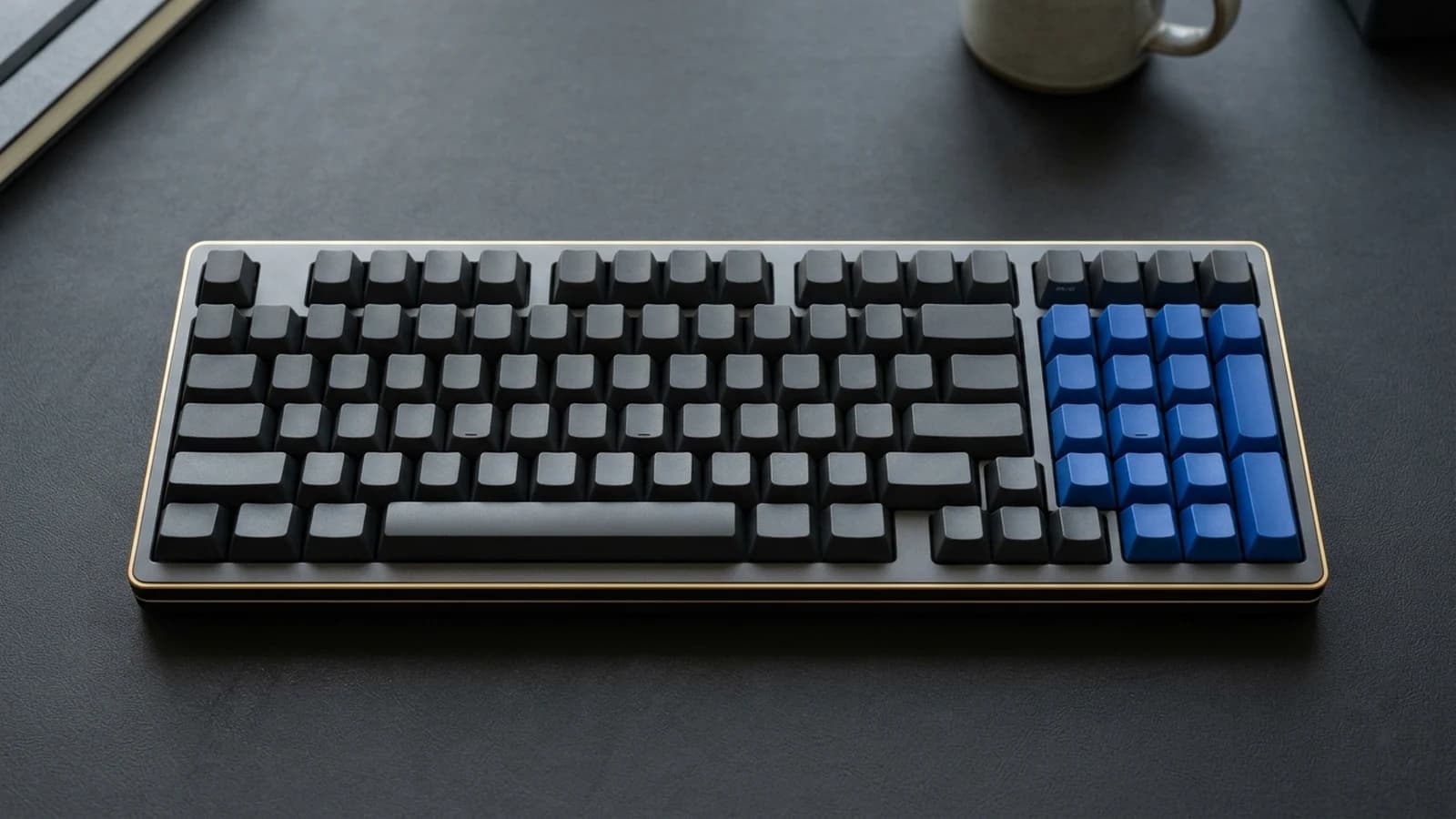
A 60% keyboard removes the function row, the navigation cluster and the number pad from the layout. Razer describes its 60% Huntsman Mini in just those terms: the keyboard "doesn't have the function row, home cluster and numpad of a traditional full-sized keyboard", and those inputs stay reachable "via secondary functions and shortcuts". Razer's FAQ gives a simple example, FN plus the number 1 for F1. The Razer Huntsman Mini is in our catalog if you want to see a second 60% design, but the comparison below sticks to HyperX so that both sides come from one maker's documentation.
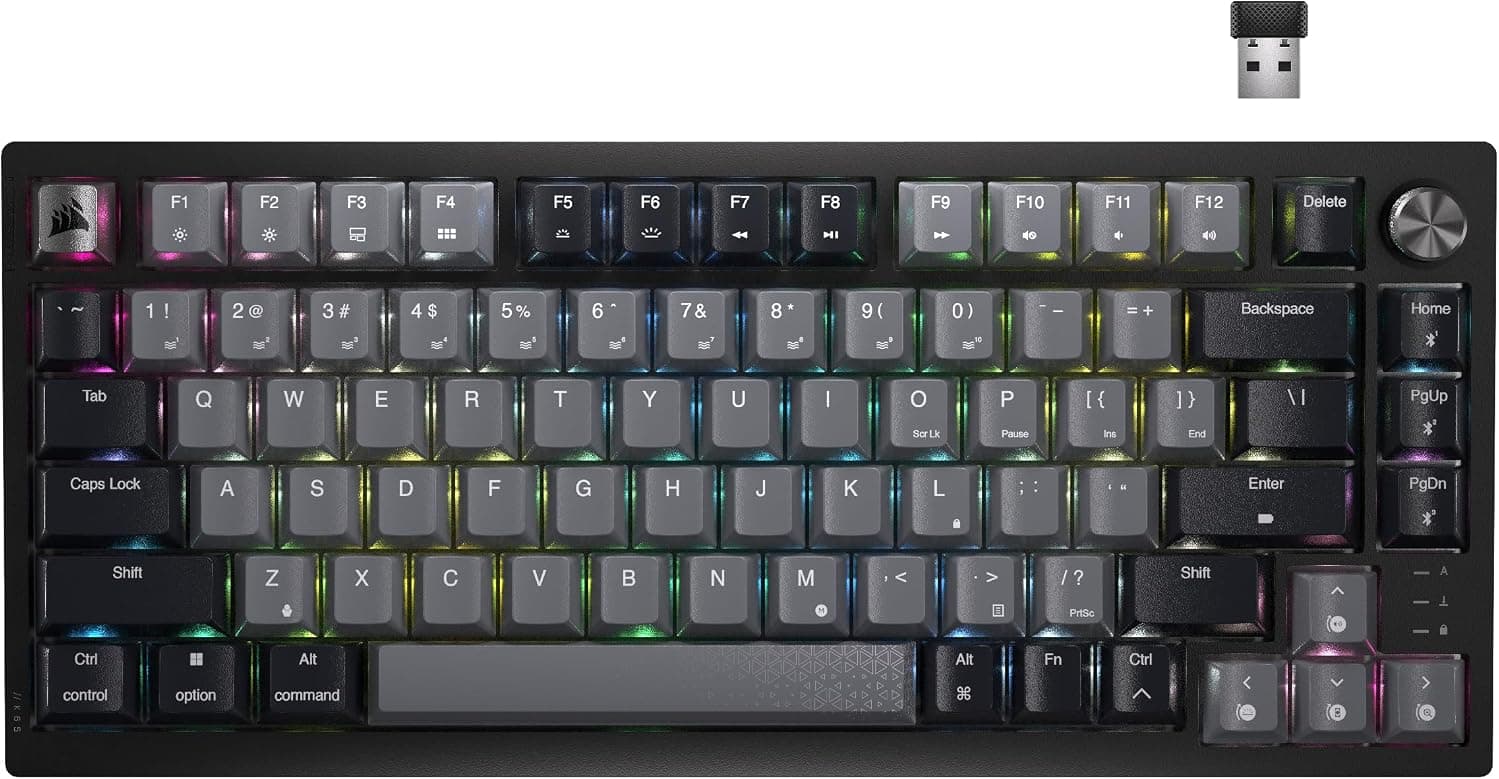
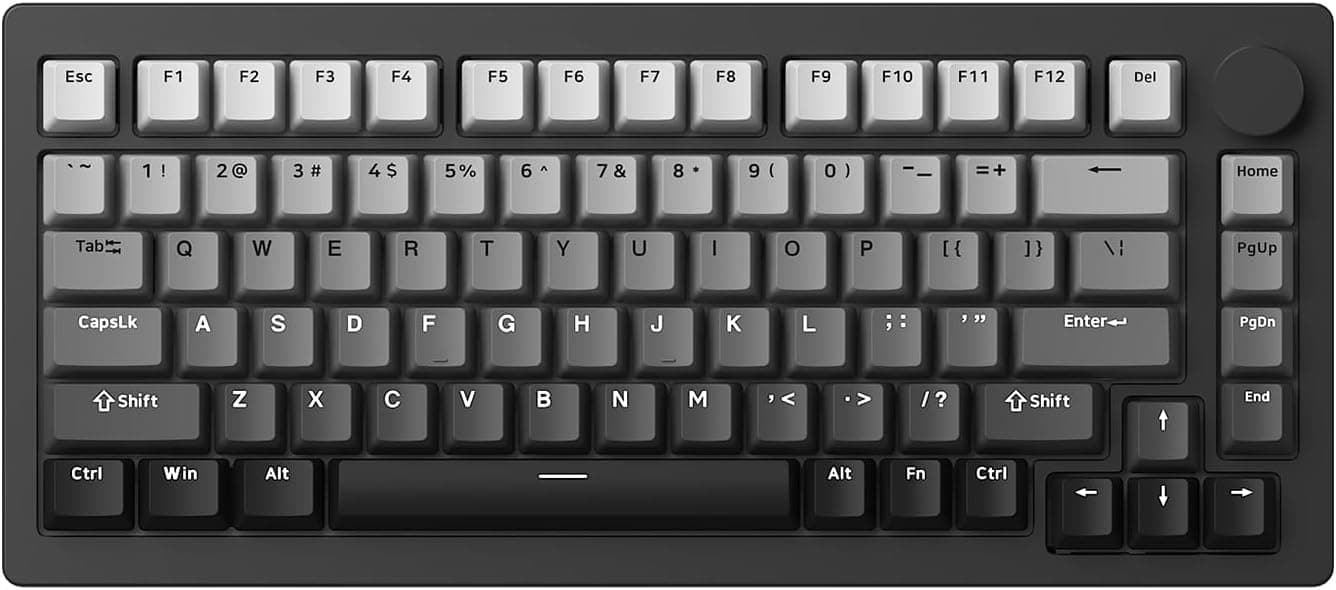
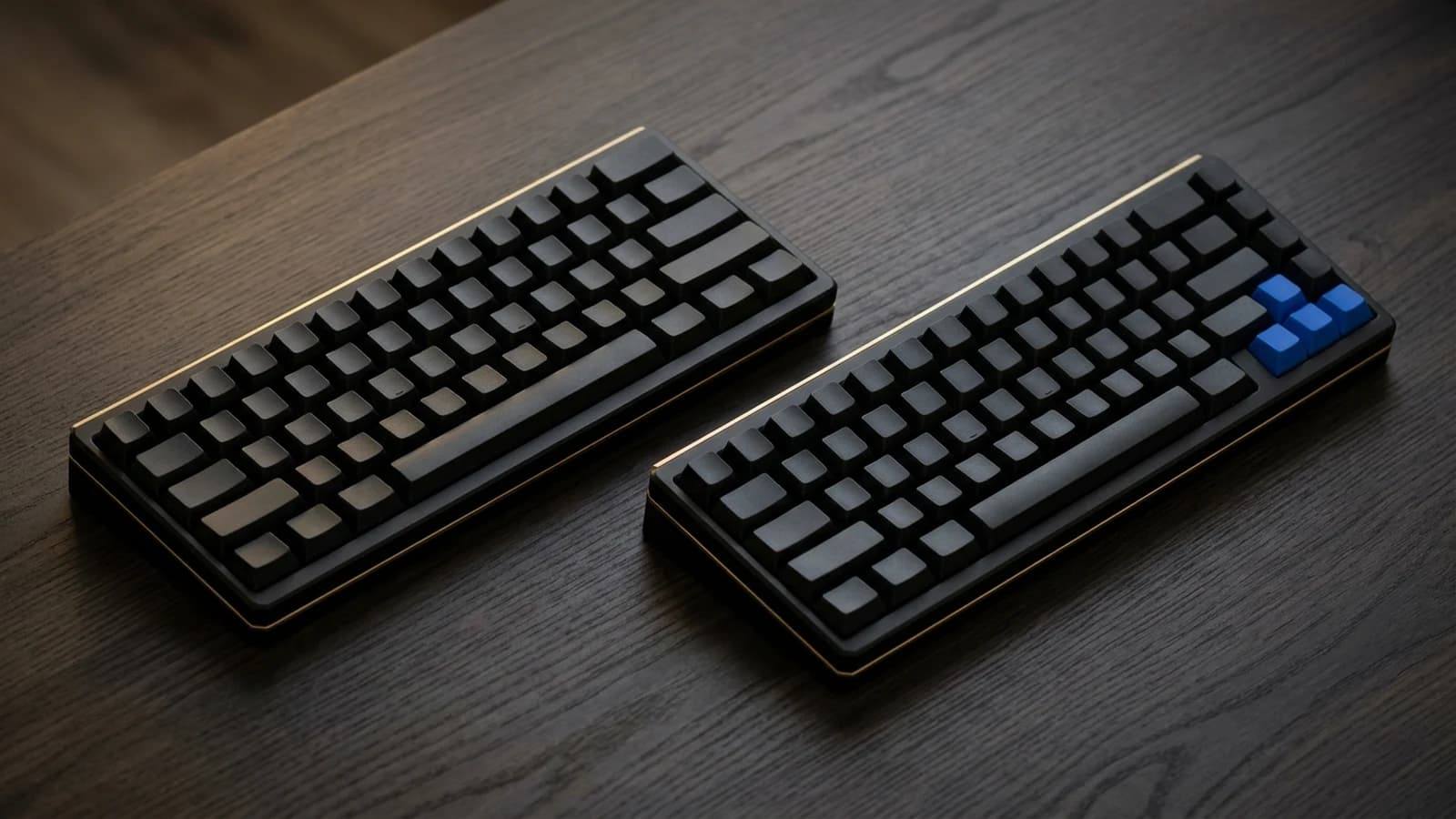
HyperX describes the 65% step differently. On the Alloy Origins 65 page it says the form factor "frees up more mouse space than a tenkeyless keyboard, but keeps dedicated arrow keys, Page Up/Down, Home, and Delete keys." Our reading of that wording is that the 65% step adds a narrow column of navigation keys to the 60% arrangement. That column is the whole difference this article is about.
One caution before the numbers. HyperX's Alloy Origins 60 page does not say how the arrow keys are reached, and the support notes we read for the model do not either. The support page only says to press FN together with a function key to use the secondary feature printed on the side of the keycap. We therefore do not claim to know which keys carry the arrows on the 60. Treat that as something to confirm from the keycap legends or the quick start guide before you buy.
The two keyboards side by side
These are the manufacturer's published figures for each model. The third column shows our own subtraction.
| Specification | HyperX Alloy Origins 60 | HyperX Alloy Origins 65 | Difference |
|---|---|---|---|
| Width | 296.0 mm | 315.06 mm | 19.06 mm wider |
| Depth | 105.5 mm | 105.5 mm | none |
| Height | 36.9 mm | 36.94 mm | 0.04 mm, within rounding |
| Weight with cable | 1.72 lb | 1.82 lb | about 0.10 lb (roughly 45 g) |
| Cable | USB-C to USB-A, braided, detachable | Detachable USB-C, braided | |
| Connection | Wired | Wired | none |
| Keycaps | Double-shot PBT, side-printed secondary functions | Double-shot PBT, side-printed secondary functions | none |
Subtracting the published numbers gives these differences: the 65% model is 19.06 mm wider, has the same depth, and weighs about 0.10 lb more. The weight gap in grams is our conversion, so treat it as approximate. The subtraction is ours; no one measured these keyboards on a desk for this guide.
Two limits apply. Both pages list the product with its switch options, and the switch available to you depends on the exact version you order, so this guide makes no claim about which switch feels better. The comparison also covers only these two keyboards. Another 60% or 65% model can be heavier, wider or shallower, so do not carry the figures over to a whole category.
What 19 millimeters buys you
The extra width of about two centimeters is the price of the dedicated keys. If your desk is tight, the number to check is the width of the space you leave beside the keyboard for a mouse. HyperX presents both layouts as a way to free up room for mouse movement, and the 65% model gives up a little of that room for the arrow column. The depth is identical, so a keyboard tray or a gap under a monitor stand does not change between the two.
If you move a keyboard between a desk and a bag, the weight difference of roughly 45 g is a fact you can picture, but it says nothing about durability or protection in transit.
Where arrow keys matter in daily work
Whether the arrow column is worth 19 mm depends on what you do with it. The operating system documentation shows how much of everyday editing runs through the arrows.
On Windows, Microsoft's shortcut list includes the arrow keys for moving the cursor by character and line, Ctrl plus an arrow to jump by word or paragraph, and Shift plus an arrow to select text. The Windows key plus the left or right arrow snaps a window to one side of the screen, and the Windows key plus the up arrow maximizes the active window. In File Explorer, Alt plus the left arrow goes to the previous folder and Alt plus the up arrow moves up one level.
On a Mac, Apple's text-editing shortcuts lean on the arrows as well. Command plus the left or right arrow moves the insertion point to the start or end of the line, Option plus an arrow moves by word, and adding Shift extends the selection. Apple also documents Fn plus the up or down arrow as Page Up and Page Down, and Fn plus the left or right arrow as Home and End. A 65% layout has dedicated Page Up/Down and Home keys, as HyperX states, so those functions need no layered shortcut there.
This is where a 60% layout can get awkward. If the arrows live on a layer, a combination such as Ctrl plus Shift plus an arrow may need an extra key held at the same time. Whether that is a minor adjustment or a daily irritation depends on how often you do it, and no manufacturer page tells us that. We do not offer an estimate of comfort, speed or fatigue.
When a 60% layout is the better fit
A 60% board makes sense when the footprint is the constraint, you rarely edit long documents or spreadsheets, and you mostly use the keyboard for games or short messages that rely on the letter keys. It also suits people who like to remap or relearn a layer and do not mind checking a legend. The smaller width is a real, published difference, and in a tight setup it can decide the choice.
Because the keycaps carry side-printed secondary functions, HyperX built a visible reference into the product. That helps with learning, though it does not change the fact that you press two keys for the function.
When a 65% layout is the better fit
A 65% board makes sense when you edit text, navigate code, move through long web pages or work with spreadsheets, because the arrow keys, Page Up/Down, Home and Delete sit on the keys themselves. It is also the safer starting point if you are moving down from a tenkeyless or full-size keyboard and want the smallest change in habit. If you are unsure about layouts above this one, our guide to 75% versus tenkeyless keyboards covers the next step up, and our comparison of 96% and full-size keyboards covers number-pad users.
A short checklist before you buy
Write down the answers to these questions and mark each one confirmed or unresolved.
- Which of these do you press daily: arrow keys, Page Up/Down, Home, End, Delete?
- Do you use shortcuts that combine Ctrl, Option, Command or the Windows key with an arrow?
- How much width can you give the keyboard before it crowds your mouse?
- Does the exact model you plan to buy say how the arrows are reached? If the listing is silent, look for the maker's quick start guide or the side-printed legends in the product photos.
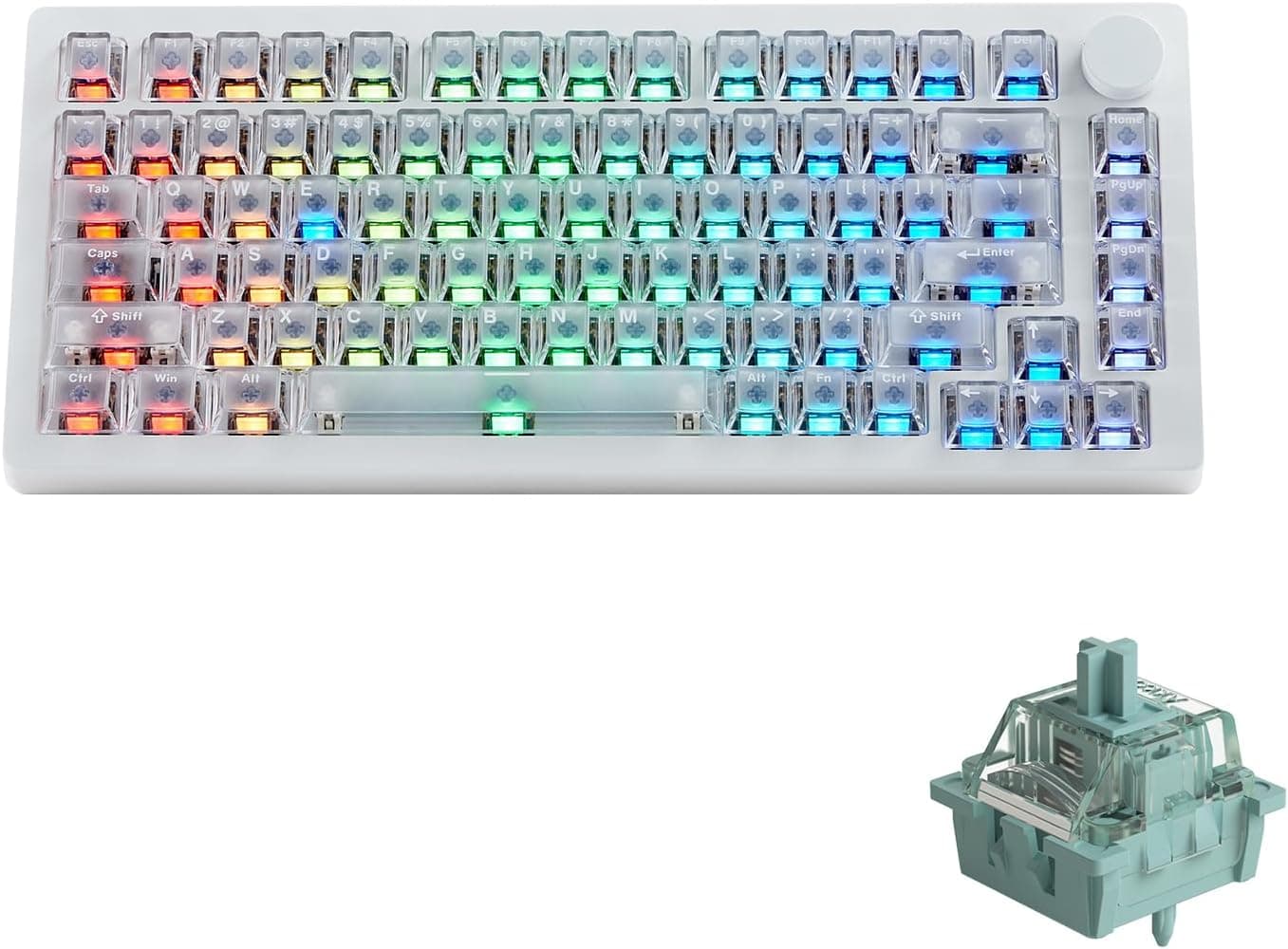
- Do you plan to change switches or keycaps later? If so, read our hot-swap compatibility guide and check the maker's socket details for the exact version.
If question one or two gets a clear yes, start with the 65%. If you answered mostly no and width is your limit, start with the 60% and confirm question four before you order.
What the specifications cannot tell you
Typing feel, sound and fatigue are the questions most readers care about, and these pages are silent on them. Sound depends on the switch, the case and the mounting, not on the layout alone, so our quiet keyboard guide is a better place to compare it. The pages also say nothing about how well a layered arrow cluster holds up in practice, so we do not rank the two layouts on comfort or productivity.
Keep the exact model in mind. Similar product names are common across keyboard lines, and a similar name is not a guarantee of identical dimensions or features. Verify the model name and version on the listing you intend to buy.
Sources and shopping links
This specification-led guide uses the published HyperX Alloy Origins 60 (opens in a new tab) and HyperX Alloy Origins 65 (opens in a new tab) product pages, HyperX's support center (opens in a new tab) notes on the secondary functions, the Razer Huntsman Mini (opens in a new tab) page for the 60% description, Microsoft's keyboard shortcuts in Windows (opens in a new tab) and Apple's Mac keyboard shortcuts (opens in a new tab). It does not claim hands-on testing. Confirm every feature against the regional version you will actually receive. We quote no prices or stock levels, because the product pages carry the current values.
As an Amazon Associate we earn from qualifying purchases.
If these exact models meet your checklist, view the catalog-matched Amazon listings for the HyperX Alloy Origins 60 (opens in a new tab) or the HyperX Alloy Origins 65 (opens in a new tab). Both are affiliate links. Read the version named on the Amazon listing before you order, since this guide cannot vouch for every seller's configuration.