Mac vs Windows Keyboard Layout: Which Keys Change?
A documentation-based guide to the Mac and Windows modifier keys, the shortcuts that move between them, and how two Keychron keyboards handle both systems.
Contents
How this guide works
This guide explains one practical problem: the same shortcuts sit on different keys when you move between a Mac and a Windows PC. To keep the comparison concrete, it sets two Keychron keyboards from our catalog side by side: the Keychron Q1 Max and the Keychron V1 Max. Their specifications come from Keychron's own product pages, and the shortcuts come from Apple and Microsoft documentation. The checklist at the end is editorial advice, and we have not tested either keyboard.
The modifier keys line up, but not one to one
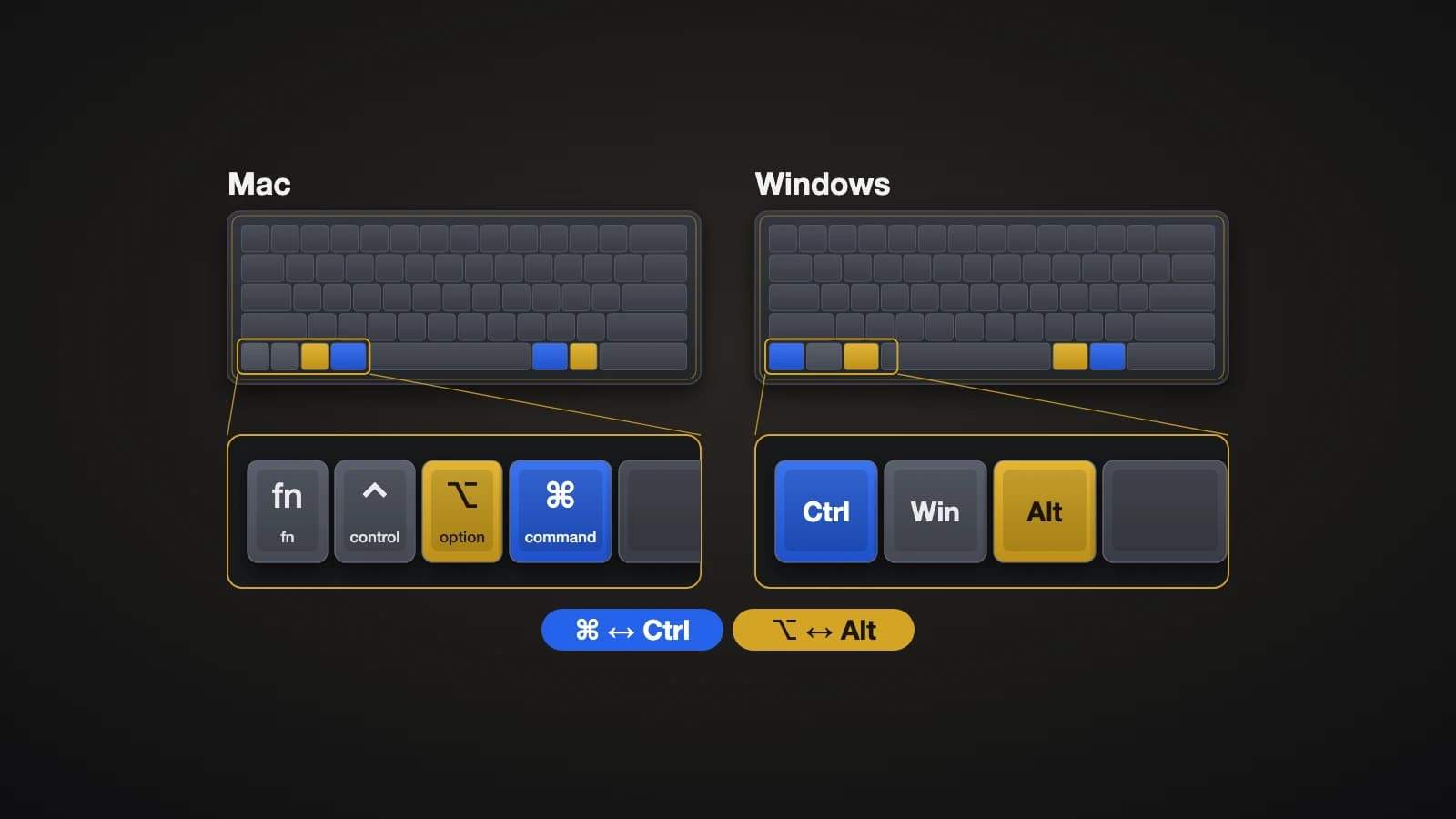
Apple states the bridge directly. A Mac shortcut such as Command-C means holding Command and pressing C. Apple adds that on keyboards made for Windows PCs, you press the Alt key instead of Option, and the Ctrl key or the Windows logo key instead of Command. In other words, a Windows-style keyboard can drive a Mac, and the three-way match is the part worth memorizing:
- Command on a Mac corresponds to the Ctrl key or the Windows logo key on a Windows-style keyboard.
- Option on a Mac corresponds to Alt.
- Control on a Mac stays Control; Apple lists it as a separate modifier in shortcuts such as Control-Command-Q.
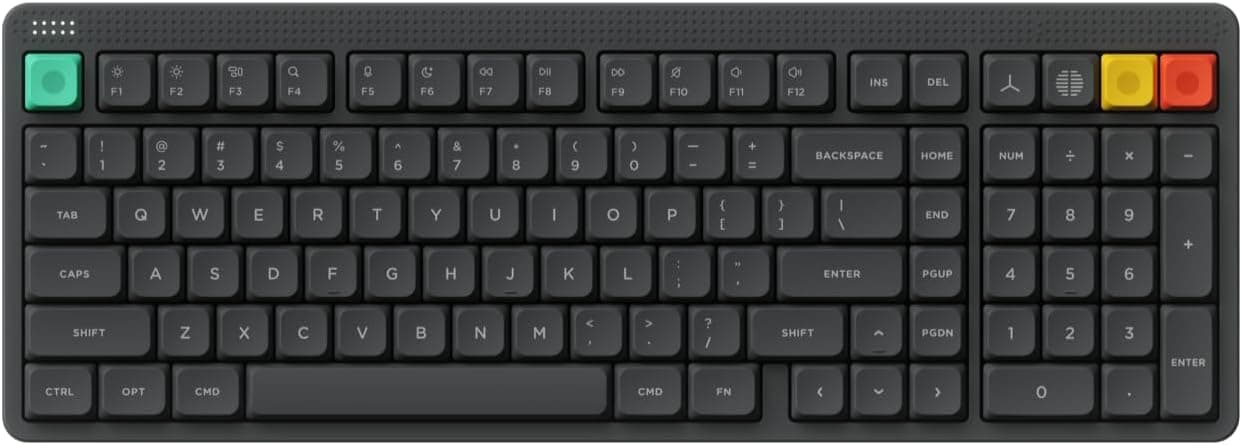
Which physical key plays which role depends on the keycaps and on the keyboard's mode, so the legends printed on the keycaps matter more than any rule of thumb.
Shortcuts that keep their letter and shortcuts that move
Most everyday shortcuts keep the same letter and change only the modifier. Microsoft lists Ctrl+C for copy, Ctrl+X for cut, Ctrl+V for paste and Ctrl+Z for undo. Apple lists the same four with Command: Command-C, Command-X, Command-V and Command-Z. If you learn the modifier swap, these four need no further thought.
A few actions land on different keys altogether. The table below pairs the closest documented actions. The pairing is our editorial side-by-side of the two documentation sets; where the two actions are close but not identical, the last column says so.
| Action | Windows (Microsoft) | Mac (Apple) | Note |
|---|---|---|---|
| Copy, cut, paste, undo | Ctrl+C, X, V, Z | Command-C, X, V, Z | Same letters |
| Switch between open apps | Alt+Tab | Command-Tab | Same Tab key, different modifier |
| Close the active window | Alt+F4 | Command-W | Alt+F4 also prompts to shut down when no window is open |
| Quit an app | Alt+F4 closes the active window | Command-Q quits the app | Not identical; see below |
| Lock the screen | Windows key+L | Control-Command-Q | Different letter and modifiers |
| Open the security or force quit screen | Ctrl+Alt+Del | Option-Command-Esc | Windows opens a security screen with Task Manager; Apple forces an app to quit |
| Delete the word to the left | Ctrl+Backspace | Option-Delete | Modifier changes from Ctrl to Option |
| Move to the start or end of a line | Home or End | Command-Left or Right Arrow | Different keys entirely |
| Move to the start or end of a document | Ctrl+Home or Ctrl+End | Command-Up or Down Arrow | Arrow keys carry the move on the Mac |
| Page Up or Page Down | Page Up or Page Down | Fn-Up Arrow or Fn-Down Arrow | Apple documents Fn plus the arrows |
Two rows deserve a note. The lock-screen shortcut changes both the modifier and the letter, so it is the one people most often type wrong. And the quit versus close distinction exists on both systems: Microsoft documents Alt+F4 as closing the active window, while Apple documents Command-W for the front window and Command-Q for the whole app.
Where the arrow cluster and Fn row get in the way
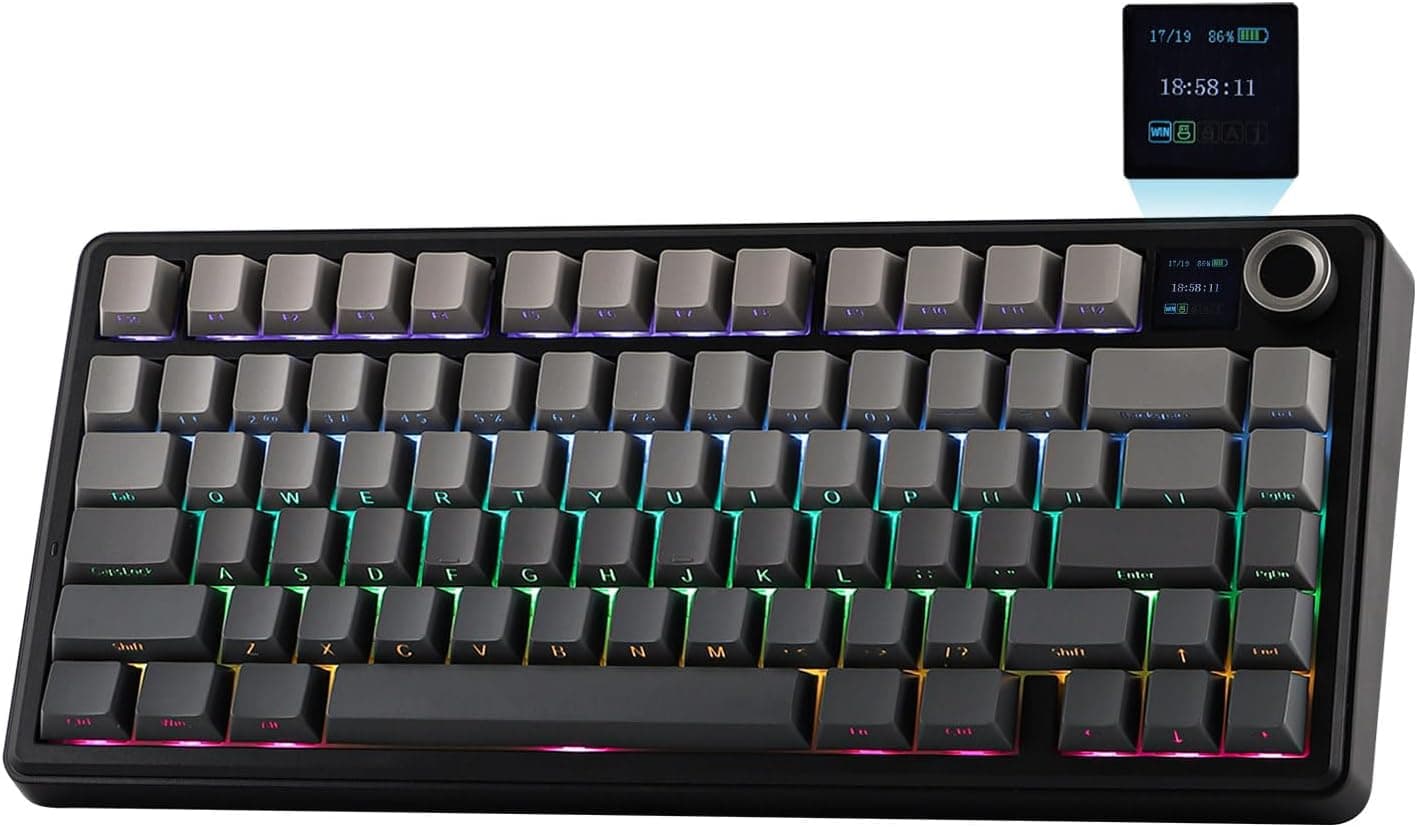
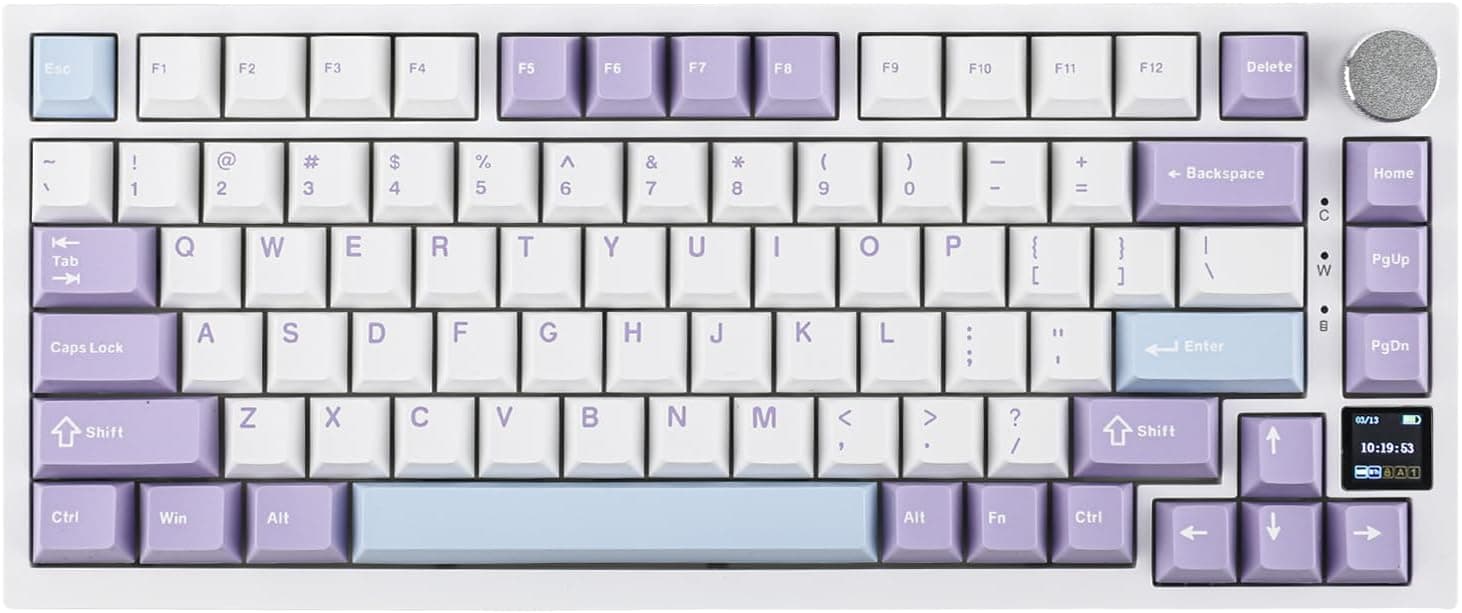
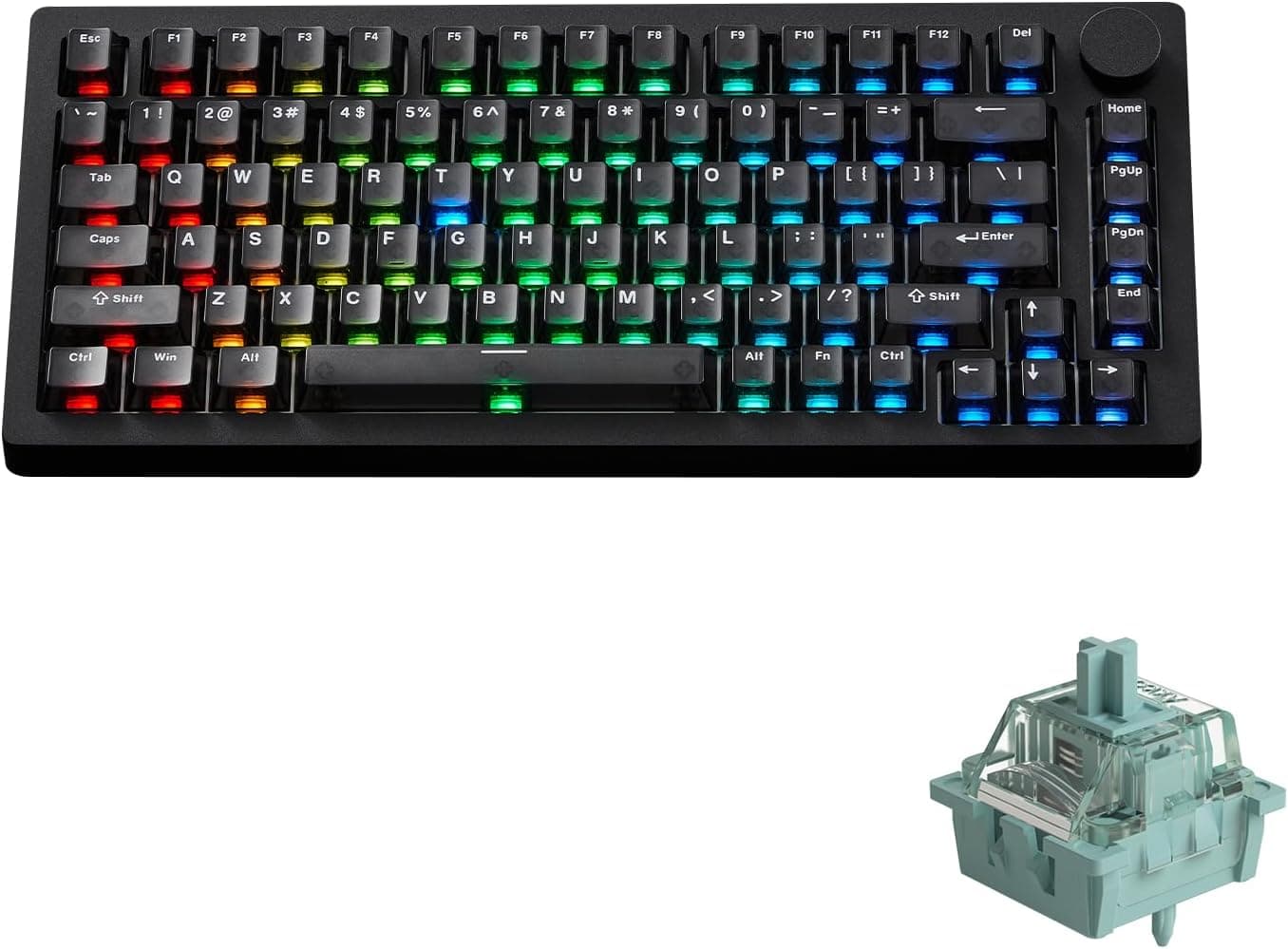
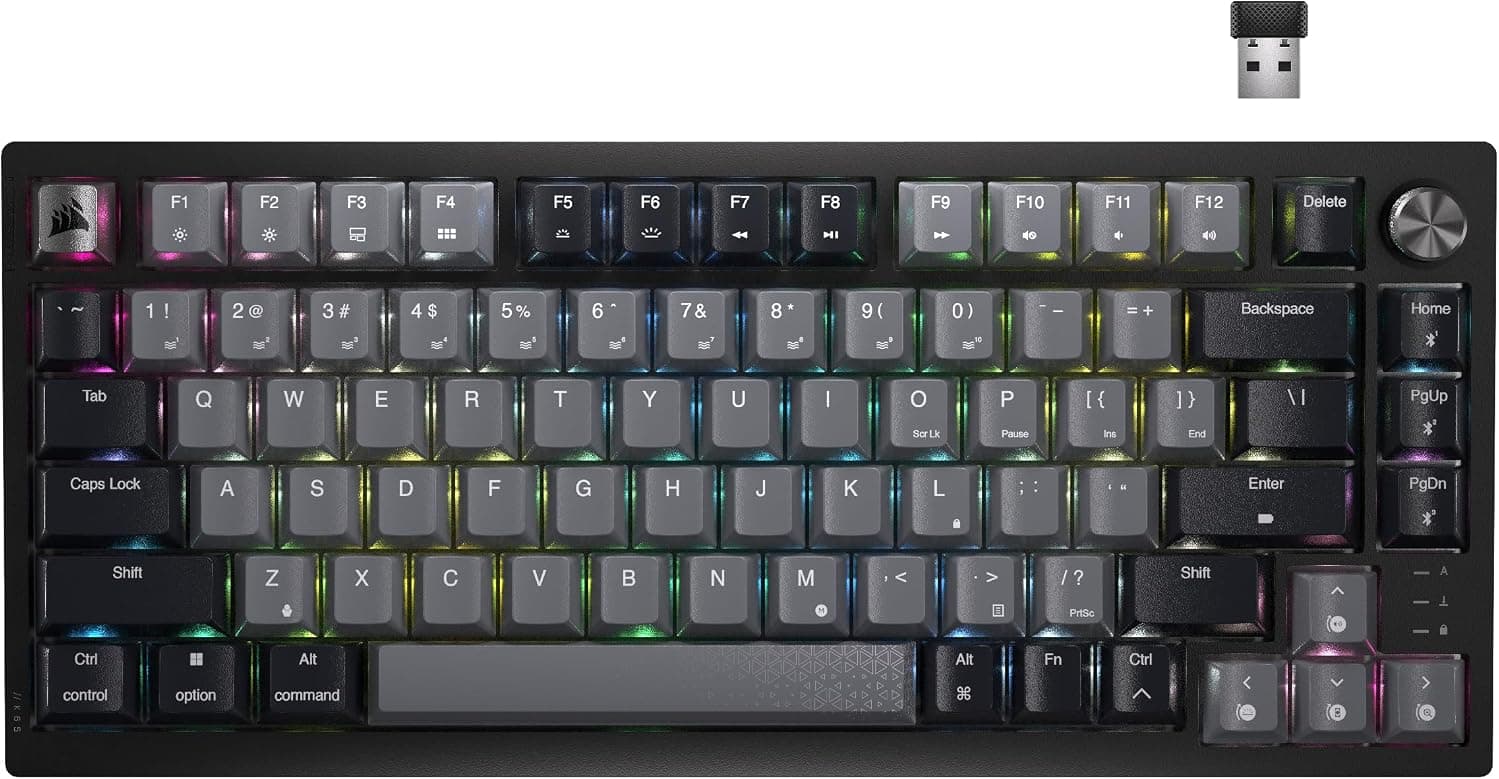
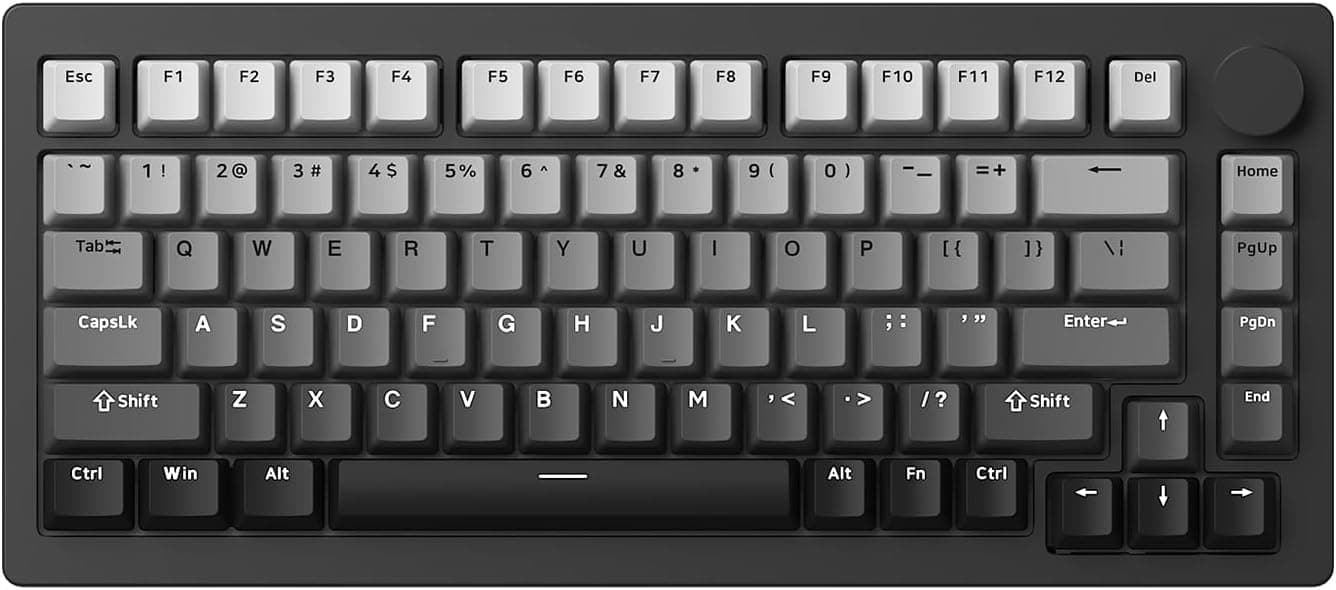
Apple documents Fn plus the arrow keys as Page Up, Page Down, Home and End. A compact 75% board such as the two below has fewer dedicated keys than a full-size one, so you may rely on a layer for some of these. Our 60% versus 65% guide covers that trade-off for arrow keys specifically.
The Fn row behaves differently by mode on some Keychron boards. Keychron's table for the earlier Q1 lists Fn plus F1 to F12 as brightness, task view, media and volume actions in Windows mode, and as plain F1 to F12 in Mac mode. That table is for the Q1, not the Q1 Max, so check the manual for your exact model before relying on it.
Two keyboards with a system toggle
The two Keychron keyboards are close in layout and differ in build. Figures are Keychron's own.
| Specification | Q1 Max | V1 Max |
|---|---|---|
| Layout | 75% ANSI with knob | 75% ANSI with knob |
| Connectivity | 2.4 GHz, Bluetooth (up to 3 devices), wired | 2.4 GHz, Bluetooth |
| Switches | Gateron Jupiter, hot-swappable | Gateron Jupiter, hot-swappable |
| Body | CNC aluminum | ABS plastic, gasket mount |
| Weight (fully assembled) | 1724 g ± 10 g | 770 g ± 10 g |
| System toggle | Yes, per Keychron | Yes, per Keychron |
| Extra Mac and Windows keycaps | Yes, per Keychron | Yes, per Keychron |
| Two saved layouts | One per system, per Keychron | One per system, per Keychron |
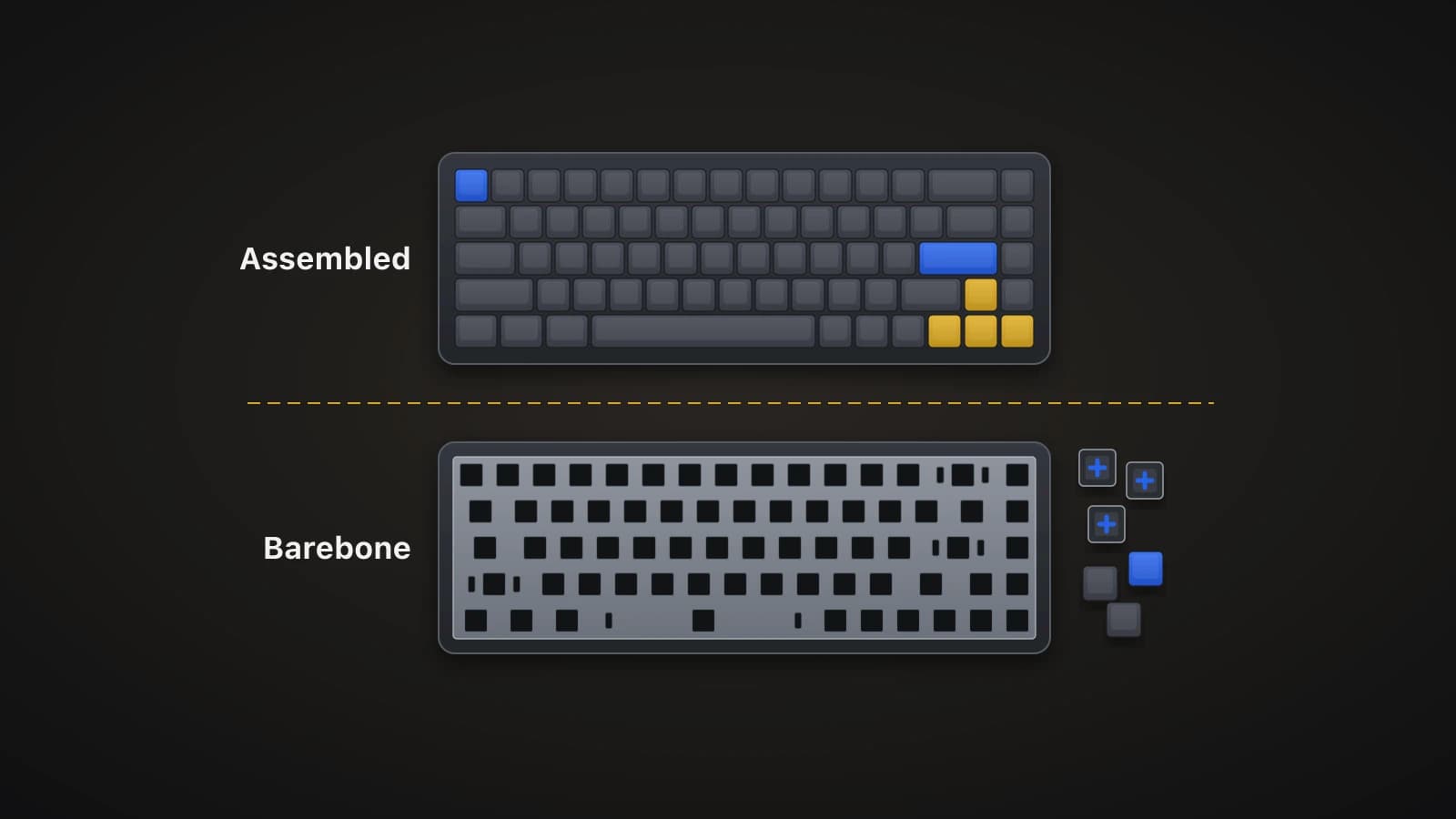
Both pages use nearly the same wording for the feature that matters here: the keyboard "comes with a system toggle and an additional set of customized keycaps for both Windows and macOS systems", and you can "save two different layouts on the keyboard, one for each system". Keychron's pages for the Q1 Max also state that the fully assembled version includes the Mac and Windows keycaps. The pages do not list exactly which keys the toggle swaps, so we do not claim to know. Treat the key-by-key effect as something to confirm in the manual or the Keychron Launcher.
One point from Keychron's documentation for the older Q1 is worth keeping in mind. It says the Windows toggle position and the macOS position use separate layers, so a remap made for one position does not apply to the other. We cannot say the same layer numbers apply to the Max models, but the idea carries over as a check: after you remap a key, test it with the toggle in each position.
When a system toggle is the better fit
A toggle suits you if you move a keyboard between a Mac and a Windows PC, or if you share one desk between two machines, and you want the modifier keys to behave as expected on each without a software step. The extra keycaps are a hardware answer to the legend problem: if the legend on the key matches the system you are using, you do not have to remember which key is which. Our comparison of Bluetooth, 2.4 GHz and wired keyboards covers connection choices for a keyboard that follows you between machines.
The Q1 Max has the CNC aluminum body and the V1 Max has the lighter ABS plastic body. If you carry the keyboard often, the weight gap of roughly 950 g (our subtraction of Keychron's two figures) is a published fact you can picture, but it says nothing about durability or protection in transit.
When a software remap is enough
If you stay on one system most of the time, you may not need a hardware toggle. Apple documents a Modifier Keys setting: open System Settings, click Keyboard, then Keyboard Shortcuts, then Modifier Keys, and choose what each modifier does. That lets a Windows-style keyboard on a Mac put the Windows logo key and Alt where you expect Command and Option. It changes the action, not the printed legend, so you still read the old name on the keycap.
The same limit applies to the Keychron Launcher or VIA remaps. A software change is free and reversible, but you carry the setup to each computer, and it does not give you new keycaps. If you also plan to swap switches or keycaps later, read our hot-swap compatibility guide first.
A short checklist before you buy
Write down the answers to these questions and mark each one confirmed or unresolved.
- Do you use a Mac, a Windows PC or both on a typical day, and how often do you switch?
- Which shortcuts do you press without looking: copy and paste, switch apps, lock the screen, delete a word?
- Does the exact model you plan to buy say it has a system toggle, and does the box include the keycaps for both systems?
- Do you need Bluetooth pairing for several devices? Keychron lists up to 3 devices for the Q1 Max.
- How much weight can you carry? The two models differ by roughly 950 g in Keychron's figures.
- Have you looked at the arrow and navigation keys on a 75% layout and decided whether a Function layer is acceptable?
If question one says you switch every day, start with a keyboard that has a toggle and both keycap sets. If you rarely switch, a macOS modifier remap may be enough.
What the documentation cannot tell you
Typing feel, sound and fatigue are the questions most readers care about, and these pages are silent on them. Sound depends on the switch, the case and the mounting, so our quiet keyboard guide is a better place to compare it. The pages also do not say how many Mac-specific functions, such as Spotlight or Mission Control keys, the toggle changes. They also say nothing about how well the toggle holds up over time, so we do not rank the two keyboards on comfort or productivity.
Keep the exact model in mind. Similar product names are common across keyboard lines, and a similar name is not a guarantee of identical features. Verify the model name, the keycap set and the version on the listing you intend to buy. If you are still deciding on a layout size, our 75% versus tenkeyless guide covers the next step.
Sources and shopping links
This documentation-led guide uses the published Keychron Q1 Max (opens in a new tab) and Keychron V1 Max (opens in a new tab) product pages, Keychron's pages on choosing the correct layer in VIA (opens in a new tab) and Q1 key combinations (opens in a new tab), Apple's Mac keyboard shortcuts (opens in a new tab) and modifier key settings (opens in a new tab), and Microsoft's keyboard shortcuts in Windows (opens in a new tab). It does not claim hands-on testing. Confirm every feature against the regional version you will actually receive. We quote no prices or stock levels, because the product pages carry the current values.
As an Amazon Associate we earn from qualifying purchases.
If these exact models meet your checklist, view the catalog-matched Amazon listings for the Keychron Q1 Max (opens in a new tab) or the Keychron V1 Max (opens in a new tab). Both are affiliate links. Read the version named on the Amazon listing before you order, since this guide cannot vouch for every seller's configuration.